To add your Xbox console to the Xbox app on PC, start with three checks: use the same Microsoft account, turn on Remote features on the console, and make sure the Xbox app is updated. If those are right, your PC should be able to find the console and start Remote Play without much extra setup.
How to Add an Xbox Console to the Xbox App on PC
The cleanest setup order is account first, console settings second, Xbox app last. That keeps you from chasing a missing button in the PC app when the real issue is that the console is signed into a different profile or not ready for Remote Play.
Sign in with the same Microsoft account
Check the gamertag on your Xbox, then check the account shown in the Xbox app on your PC. They need to match. This is the most common place things go wrong, especially on shared PCs where Windows, Microsoft Store, and the Xbox app may each remember a different account.
If you recently changed your password, enabled two-step verification, or switched profiles on the console, sign out and back in on both devices before trying again.
Enable remote features on your Xbox
Your console must allow remote access before the PC app can stream from it. Turn on Remote features in the Xbox settings and use a power mode that lets the console stay reachable for remote sessions.
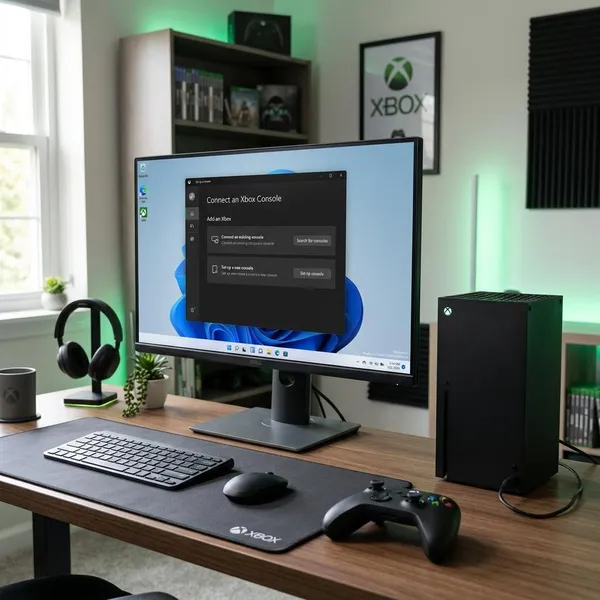
Open the Xbox app on your PC
Open the Xbox app after the console is already prepared. Let the app finish loading, confirm the same Microsoft account is active, and update the app from the Microsoft Store if the console area looks different from instructions you have seen elsewhere.
Find the console connection option
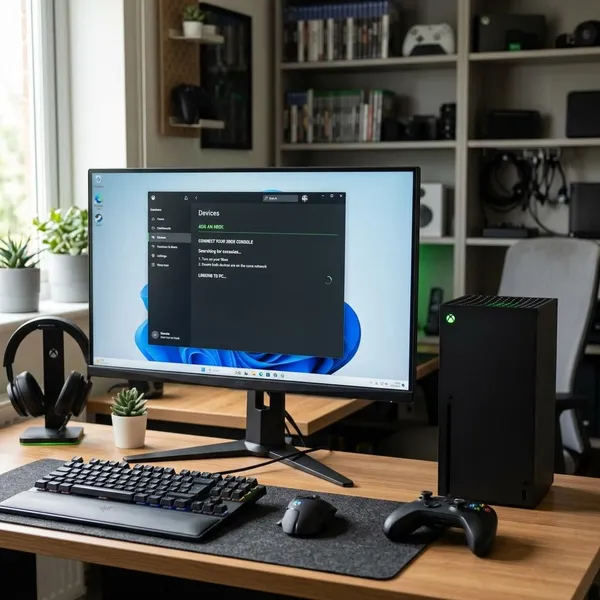
Look for the console, devices, or Remote Play area in the Xbox app. Microsoft changes the app layout over time, so you may not see a button named exactly "Add a console." In some versions, available consoles appear automatically once your account and console settings are correct.
Select your Xbox and finish setup
When your Xbox appears, select it and follow the prompts. If you have more than one console at home, choose carefully by name so you do not connect to the wrong room or family console.
- Turn on the Xbox and confirm it is online.
- Use the same Microsoft account on the Xbox and PC app.
- Enable Remote features and run the Remote Play test.
- Open the Xbox app on PC and select the console when it appears.
How to Enable Remote Features on Xbox
Remote features are the console-side permission that makes this whole setup work. If they are off, the Xbox app may still let you sign in, but Remote Play will not reliably start.
Open the console settings
From the Xbox home screen, press the Xbox button on your controller, go to Profile & system, and open Settings. It is worth doing this before troubleshooting the PC, because a missing console in the app often starts with a setting on the Xbox itself.
Select Devices & connections
In Settings, choose Devices & connections. This is where Xbox keeps the options that control how the console talks to apps, accessories, and remote devices.
Open Remote features
Open Remote features. If the dashboard wording has changed slightly after an update, look for the closest remote access or device connection menu rather than assuming your console does not support it.
Turn on remote features
Switch Remote features on, then check the power setting shown on the same screen. The practical question is simple: can the console respond when your PC tries to start a remote session?
- For occasional use: enable the feature before you need it, then test once from the PC.
- For regular play from another room: use the most reliable network option available, ideally Ethernet for the console.
- If you often fully shut down the console: expect Remote Play to be less dependable unless the selected power mode supports remote access.
Run the Remote Play test
Run the built-in Remote Play test before returning to the PC app. It can flag weak Wi-Fi, unsuitable power settings, or connection problems that would otherwise look like a broken Xbox app.
What Connecting Your Console Does
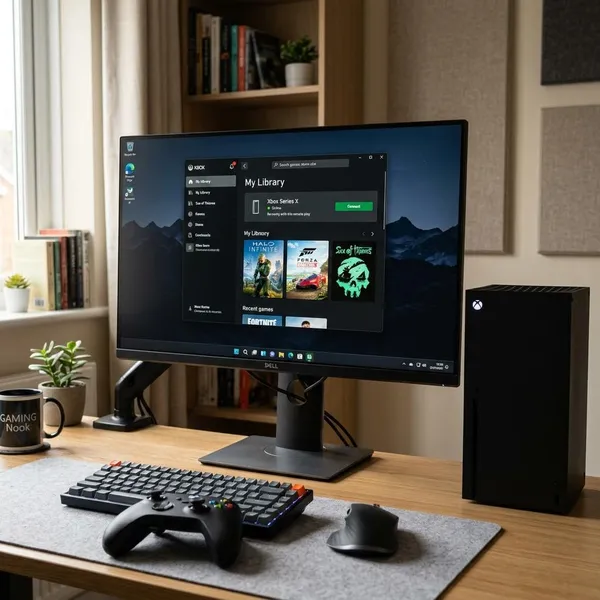
Connecting the console lets the Xbox app recognize your physical Xbox and use it for Remote Play. It does not turn every Xbox game into a native PC game, and it is not the same thing as Xbox Cloud Gaming.
Lets the app find your Xbox
The app needs a clear link between your Microsoft account and the console you want to use. Once that link works, the console can appear as an available device instead of leaving you stuck with only PC games or cloud options.
Enables Remote Play on your PC
Remote Play streams your Xbox screen to the PC while the game still runs on the console. It is useful when the TV is occupied, when you want to play from a laptop in another room, or when your headset and controller are already set up at your desk.
It is not ideal for every situation. Slower single-player games usually tolerate small network hiccups better than competitive shooters or timing-heavy games, where even minor input delay can be annoying.
Streams games installed on your console
Remote Play uses games installed on your Xbox, so your PC does not need to install the same large game locally. That is helpful if your computer has limited storage or if you prefer keeping your console as the main place for downloads.
Keeps console streaming separate from cloud gaming
Console streaming, cloud gaming, and native PC play solve different problems:
- Remote Play: your own Xbox runs the game and streams it to your PC.
- Cloud gaming: Microsoft's servers run the game, not your home console.
- Native PC play: the game is installed and running directly on your computer.
How to Fix an Xbox That Will Not Connect
When the Xbox app cannot find the console, troubleshoot in the order that catches the most likely problems first: restart, account check, Remote features, updates, network, then reconnect. Randomly changing settings usually takes longer.
Restart the console and PC
Restart both devices before doing anything more complicated. Use the Xbox power menu to restart the console instead of only putting it to sleep, then restart the PC and reopen the Xbox app after both are fully online.
Sign in again on both devices
Sign out of the Xbox app on PC and sign back in with the correct Microsoft account. Do the same with the profile on the console if needed.
This is especially important on a family console or shared computer. The console may be ready, but the app will not list it under the wrong account.
Recheck the remote feature settings
Return to Settings > Devices & connections > Remote features and confirm the feature is still enabled. Also run the Remote Play test again if the setup used to work but suddenly stopped.
Update the Xbox app and console
Update the Xbox app through the Microsoft Store, then check the console for system updates. App layout changes can make older instructions look wrong, while outdated software can cause sign-in loops, missing console listings, or failed streaming sessions.
After installing updates, restart both devices once. It is a small step, but it gives the app and console a clean connection attempt instead of carrying over a half-failed session.
Test the network connection
A console can be correctly linked and still perform badly if the network is unstable. For the most reliable setup, test with the Xbox on Ethernet or with both devices close to the router on a strong 5 GHz connection.
- If setup fails immediately: put the PC and Xbox on the same home network and try again.
- If the console appears but streaming stutters: check Wi-Fi strength, router distance, and background downloads.
- If Remote Play works sometimes: watch for mesh network handoffs, weak upload stability, or power mode changes.
Remove and reconnect the console
If the app shows the Xbox but refuses to start a session, remove the console from the app if that option is available and set it up again. Treat this as a clean reset: account match first, Remote features second, Remote Play test third, Xbox app connection last.
Conclusion
The setup usually works once the basics line up: same Microsoft account, Remote features enabled, updated software, and a stable network. If your Xbox is still missing from the app, do not start with obscure fixes; recheck the account and console-side Remote Play settings first, because those two cause most failed connections.