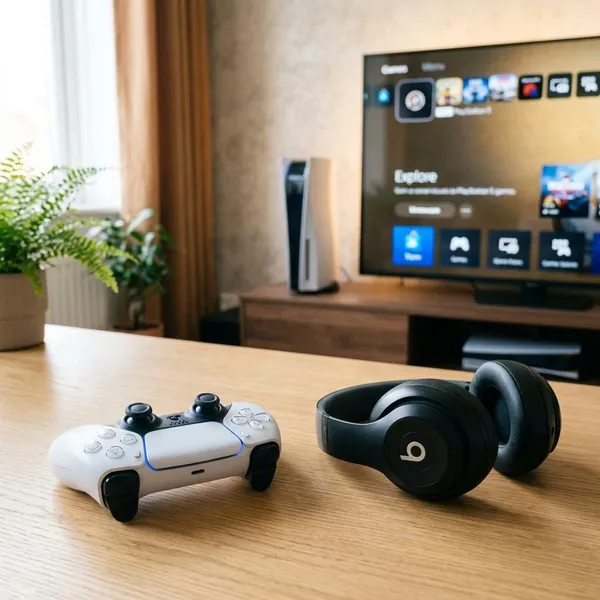
Static or crackling from Beats headphones on a PS5 controller is usually caused by the wired connection, the DualSense jack, charging interference, or a noisy mic setting. Start with the 3.5mm plug and charging cable before assuming your Beats are broken, because those two checks often reveal the problem fastest.
Why Do Beats Headphones Make Static Noise on PS5?
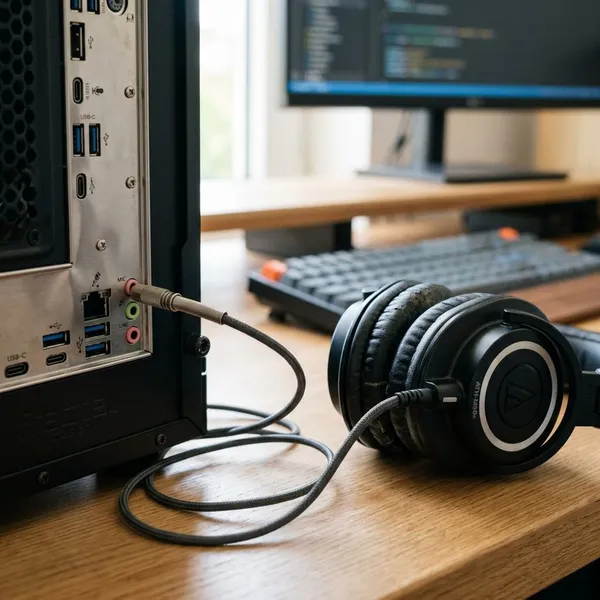
Beats can sound clean on a phone but noisy through a PS5 controller because the DualSense uses a small analog 3.5mm connection. That connection is sensitive to loose contact, lint, cable wear, and electrical noise from charging.
If the noise appears only during party chat, in quiet menus, or while the controller is plugged into USB, the headset speakers may not be the real issue. Treat the problem as a signal-path issue first: plug, cable, controller jack, power, then settings.
A loose 3.5mm plug breaks the connection
A partly inserted plug can still produce sound, but the contacts may not line up properly. If the static changes when you rotate the plug, move your hands, or bump the cable, the connection is not stable enough.
A damaged cable creates crackling
Cable damage often hides near the plug, inline remote, or a bend point. A cable may work while your phone is sitting still but crackle during gaming because the controller and cable move constantly in your hands.
A dirty controller jack disrupts the signal
Dust or pocket lint inside the DualSense jack can stop the plug from seating cleanly. The port may look normal from the outside, so a dirty jack is worth checking even when the controller is fairly new.
USB charging can introduce interference
Buzzing that starts when the controller is plugged into USB and stops on battery power points to charging interference. This is more likely during long sessions where you play and charge at the same time, especially with a worn or cheap USB cable.
High microphone levels can add hiss
Mic gain can make background noise sound like headphone static. This is easy to notice in party chat or a quiet PS5 menu, where the console may be amplifying the controller mic, room noise, or sidetone.
A worn DualSense jack causes unstable audio
A worn jack becomes likely when several headsets or cables crackle on the same controller but work normally elsewhere. Movement-related dropouts after cleaning and reseating the plug are another warning sign.
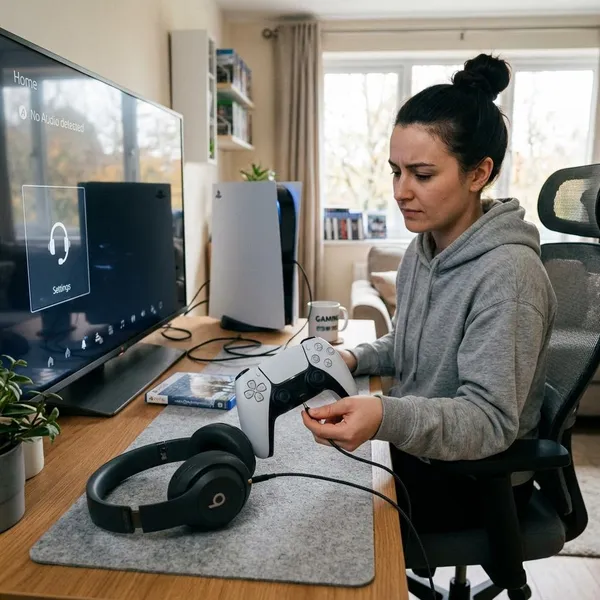
How to Fix Beats Static Noise on a PS5 Controller
Use a simple order so you do not replace the wrong part: reseat the plug, remove charging interference, clean the connection, adjust mic settings, then test another cable or controller. Changing everything at once makes it harder to know what actually fixed the static.
Insert the 3.5mm plug fully
Unplug the Beats, check the metal connector, then push it firmly into the DualSense until it feels fully seated. If your cable has a thick plug housing, make sure it is not being blocked by a controller case or adapter.
After reconnecting, gently move the cable while listening. Clean audio when still but crackling when moved usually means the plug, cable, or jack is physically unstable.
Disconnect the controller charging cable
Remove the USB cable and test the headphones while the controller runs on battery. If the buzzing disappears, charge the controller before playing with wired headphones, try a different USB cable, or use another USB port.
Clean the plug and headphone jack
Wipe the Beats plug with a dry microfiber cloth. For visible grime, use a small amount of isopropyl alcohol on the cloth only, then let the plug dry before reconnecting.
- Use short bursts of dry compressed air for the controller jack.
- Hold the controller so loose debris can fall out.
- Avoid metal tools or sharp objects inside the port.
Lower the microphone input level
Reduce the PS5 microphone level and test again in the same menu, game, or party chat where the hiss is obvious. If muting the mic makes the noise vanish, the static is coming from the mic path rather than the headphone speakers.
Confirm the correct input and output devices
Check that the PS5 is sending audio to the headphones connected to the controller and using the microphone you actually want. If your Beats cable has no mic, the PS5 may fall back to the controller mic, which can add unwanted room noise.
Restart the PS5 and reset the controller
Restart the PS5 fully instead of using rest mode. If the issue began after a system update, accessory change, or rest mode wake-up, also reset the DualSense with the small rear reset button, then pair it again and retest.
Test another cable before replacing hardware
Do not buy a new controller first if your Beats use a removable cable. A cable is cheaper, easier to test, and more likely to fail than the DualSense jack.
- Test the Beats on another device for several minutes.
- Test the PS5 controller again with USB charging disconnected.
- Try a known-good compatible Beats cable if possible.
- Plug another wired headset into the same DualSense.
- Try the Beats on another DualSense if you can borrow one.
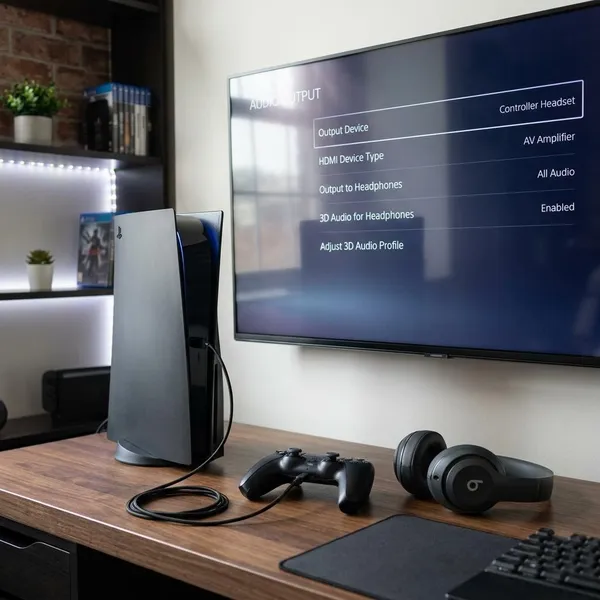
Which PS5 Audio Settings Should You Check?
Once the physical connection looks good, check the PS5 audio settings that can create hiss or make the wrong device seem faulty. This matters most if the static is stronger in party chat than in game audio, or if you use extra USB audio devices, a monitor with speakers, or a capture setup.
Set Beats as the headphone output
Open the sound output settings and select the headphones connected to the controller. For troubleshooting, send all audio to the headphones so you can hear whether the static affects game audio, chat audio, or both.
Select the correct microphone input
Choose the mic you actually intend to use. If the PS5 is using the controller mic while you think it is using a headset mic, it may pick up button presses, breathing, or room noise and feed that back as hiss.
Lower the microphone level
Set the mic level high enough for your voice but not so high that the input meter reacts strongly when you are silent. Maximum mic gain is rarely the cleanest setting for normal gaming.
Reduce the sidetone volume
Sidetone lets you hear your own voice through the headphones. Turn it down or off while testing; if the static drops immediately, the noise was coming from microphone monitoring, not from the Beats drivers.
Check the headphone volume
Very high headphone volume can exaggerate low-level hiss that would otherwise be barely noticeable. Lower it to a comfortable level, then raise it slowly until you find the point where the audio is loud enough without making background noise stand out.
Disconnect unused audio devices
Unplug extra USB headsets, audio adapters, charging docks, or speakers while testing. A simple setup is easier to diagnose, especially if the noise began after adding a new accessory.
- Use only the DualSense and Beats during the test.
- Check that the TV or monitor is not selected as the active output.
- Reconnect other devices one at a time after the sound is clean.
Conclusion
The most sensible fix is to prove where the static starts before spending money: plug seated fully, controller not charging, clean jack, sensible mic settings, then a different cable. If one cable crackles everywhere, replace the cable; if several headsets crackle only on one DualSense, the controller jack is probably the part that needs attention.