If your Bluetooth headphones connect but the volume will not move, check the simple sync points before assuming the headset is broken. The fastest path is to confirm that both the headphones and the source device are controlling media volume, then rebuild the Bluetooth connection if the level still feels stuck.
How to Fix Bluetooth Headphone Volume First
Most Bluetooth volume problems come from one of three places: the wrong volume slider, a stale Bluetooth connection, or a setting that limits output. Work through the quick checks in order, because they separate a real headphone fault from a phone, laptop, app, or TV setting.
Raise the volume on both devices
Turn up the volume on the headphones themselves and on the connected phone, tablet, computer, or TV while music or video is playing. This matters because some Bluetooth models do not fully mirror the source device volume; your phone can show 80% while the headset is still set very low.
If you are using a smart TV, do not rely only on the normal remote volume buttons. Some TVs control speaker volume with the remote but keep Bluetooth headphone volume in a separate sound menu, often labeled Headphone volume, Bluetooth audio, or something similar.
Disconnect and reconnect Bluetooth
Turn Bluetooth off on the source device, wait a few seconds, turn it back on, and reconnect the headphones. If the headphones were recently switched between a laptop, phone, and TV, also power the headset off completely before reconnecting so the control link starts fresh.
Forget and pair the headphones again
If a quick reconnect does not help, remove the headphones from the saved Bluetooth device list and pair them again. This is a good fix when the problem started after a software update, after the battery ran flat, or after using the headphones with another device.
Restart the headphones and source device
Restart both sides if the connection looks normal but the buttons still do nothing. Phones, PCs, tablets, and TVs can keep old audio sessions running in the background, and a reboot clears the Bluetooth and audio routing state at the same time.
This is especially worth doing after the device has been asleep for days, after a long video call, or after switching between several audio outputs. A restart is low risk and often fixes the "connected but not responding" behavior without changing any settings.
Test another app or audio file
Try a different source before digging into system settings: a music app, a browser video, a local file, or a podcast. If the headphones respond normally everywhere except one app, update that app or clear its playback session instead of repeatedly re-pairing the headset.
Test the headphones with another device
Pair the headphones with a second device and test volume there. If they work on a phone but not on a Windows laptop, focus on Windows output, mixer, and driver settings. If the same problem follows the headphones to every device, the issue is more likely inside the headset, its companion app, or its firmware.
A cross-platform test is more useful than testing two similar devices. For example, trying the headphones on Android after a TV issue gives you a clearer result than moving between two TVs with similar Bluetooth limitations.
Reset the headphones as a final step
Use a factory reset only after the easier checks fail. A reset can fix stuck touch controls, broken volume sync, or corrupted saved pairings, but it may also erase custom EQ, button assignments, and connected-device history. After resetting, pair the headphones once and test volume before changing any app settings.
Windows Bluetooth Headphone Volume Fixes
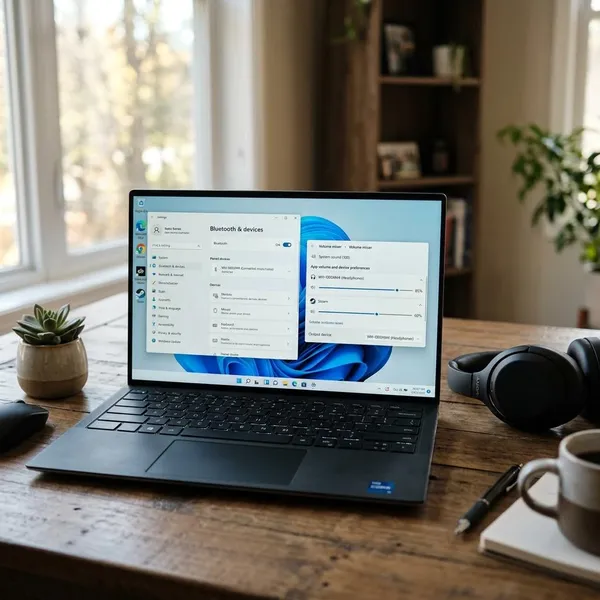
Windows adds a few extra places where volume can get lost: output selection, the volume mixer, Bluetooth profiles, and drivers. Start with the visible sound controls, then move to pairing and updates if the headphones still behave oddly.
Select the headphones as the output device
Open the Windows sound output menu and make sure the Bluetooth headphones are selected as the active playback device. If you see two versions of the same headset, choose the stereo or headphones option rather than the hands-free calling profile.
The hands-free profile is useful for calls, but it can reduce sound quality and make volume control feel limited. This often happens after meetings, gaming chat, or voice apps switch Windows into communication mode.
Check the system and app volume levels
Open the Volume Mixer and check both the master volume and the volume for the app you are using. A browser, game, meeting app, or media player can be muted or set low even when the main Windows volume slider looks fine.
- One app is quiet: close it fully, reopen it, and check its mixer level.
- Every app is quiet: check output device, pairing, and drivers next.
- Calls sound different from music: Windows may be using the hands-free profile.
Remove and pair the headphones again
Go to Settings > Bluetooth & devices, remove the headphones, restart the PC, and pair them again. The restart is worth including on Windows because old Bluetooth profile data can linger even after a device is removed.
Run the Bluetooth troubleshooter
Use Settings > System > Troubleshoot > Other troubleshooters and run the Bluetooth troubleshooter. If audio output still behaves strangely, run the audio troubleshooter too.
Update Bluetooth and audio drivers
Check Device Manager for both the Bluetooth adapter and the audio device, then compare those drivers with the versions from your laptop, motherboard, or Bluetooth adapter manufacturer. Windows may say a driver is current even when the manufacturer has a newer version for your hardware.
This step matters most on older laptops, USB Bluetooth adapters, and PCs that have recently moved to a newer Windows build. The headphones can still connect while volume commands remain unreliable if the wireless or audio driver is outdated.
Install current Windows updates
Install available Windows updates and restart afterward. Bluetooth and audio fixes are often included in regular updates, even when the release notes do not mention your exact headset. If the issue began after a partial update, pairing the headphones again after Windows is fully updated can clean up the last mismatch.
Android Bluetooth Headphone Volume Fixes
Android volume problems often come from separate sound streams and brand-specific Bluetooth settings. A phone may be changing ringtone or call volume while your headphones need media volume, or the phone and headset may disagree about whether volume should be linked.
Raise media volume instead of call volume
Start music, a video, or a podcast first, then press the phone's volume buttons. Expand the volume panel if needed and raise the Media slider, not ringtone, alarm, or call volume.
This is the first check for everyday use, such as watching videos on the train or listening to podcasts while walking. If you adjust volume from the home screen with nothing playing, some Android phones change the wrong slider and make the headphones seem stuck.
Check the media volume limit
Search Android settings for terms such as Media volume limit, Safe listening, Volume limit, or Hearing protection. If a limit is enabled, the phone may block louder output even when the visible slider is near maximum.
Be careful with this setting. It may exist for hearing protection, so the practical goal is to confirm whether the cap explains the problem, not to force the headphones louder in situations where you already need unusually high volume.
Reconnect the Bluetooth headphones
Turn Bluetooth off and back on, then reconnect the headphones. If that does not change anything, unpair them and create a fresh pairing. Android updates, brand skins, and switching the same headset between multiple devices can leave the old profile out of sync.
Toggle absolute volume if controls remain stuck
Absolute volume links the phone's volume and the headphone's own volume into one shared control. When it works, it is convenient; when it fails, the volume may jump, freeze, or stay too low.
- Enable Developer Options if they are not already available.
- Find Disable absolute volume.
- Toggle the setting, disconnect the headphones, then reconnect them.
- Keep the state that gives steadier control on your specific phone and headset.
Check the headphone companion app
Open the app from the headphone brand and look for button mapping, touch control, EQ, balance, hearing, or volume-related settings. Some headphones let you replace volume gestures with track skipping or voice assistant controls, which makes the hardware controls feel broken even though they were only remapped.
Update Android and headphone firmware
Install available Android updates, then check the headphone app for firmware updates. After updating, restart the phone, power-cycle the headphones, and test again with normal media playback.
Do this before replacing the headphones if they work on one device but not another. That pattern often points to compatibility or firmware behavior, not a completely failed headset.
iPhone and iPad Bluetooth Volume Fixes
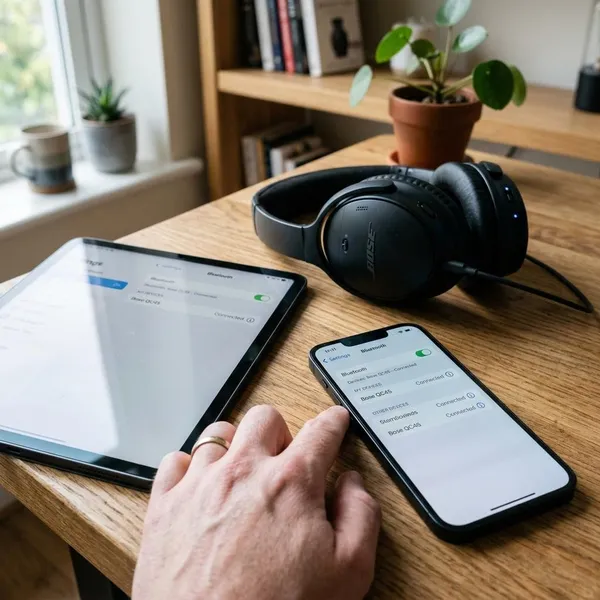
On iPhone and iPad, the most useful checks are audio routing, Headphone Safety, pairing, and app behavior. Apple devices can stay connected to Bluetooth while sending actual playback somewhere else, so confirm the output path before changing deeper settings.
Check the volume buttons and Control Center
Play audio, press the volume buttons, then open Control Center and tap the audio output icon. Make sure the correct Bluetooth headphones are selected, especially if you also use AirPlay speakers, a car system, or multiple Apple devices nearby.
Review Headphone Safety settings
Go to Settings > Sounds & Haptics > Headphone Safety and check whether Reduce Loud Sounds is active. If it is enabled, your iPhone or iPad may lower headphone output once it reaches the selected limit.
That does not mean the setting is bad. For daily listening, especially at high volume, it may be doing exactly what it is meant to do. But if you are troubleshooting a low-volume problem, it is one of the clearest places to check.
Forget and reconnect the headphones
Open Settings > Bluetooth, tap the info icon beside the headphones, choose Forget This Device, and pair them again. Use music or video to test afterward, because system sounds are not a reliable way to judge Bluetooth volume behavior.
Test another audio app
Switch to a different app such as Apple Music, Spotify, YouTube, Safari, or a saved video. If only one app has the problem, update it, force close it, or reinstall it before changing iOS settings. If every app behaves the same way, continue with system and firmware updates.
Update iOS or iPadOS
Install the latest available iOS or iPadOS version and restart the device. This is most useful when the issue appeared after a recent update, after restoring from a backup, or after using the same headphones across several devices.
Update the headphone firmware
If the headphone brand offers firmware updates through an app, install the current version. Firmware can affect button response, pairing stability, and how the headset syncs volume with Apple devices. After updating, reconnect the headphones and test the controls before changing EQ or noise-control settings.
Conclusion
Start with the checks that prove where the problem lives: media volume on both devices, a fresh Bluetooth connection, another app, and another source device. If the headphones only fail with one phone, laptop, or TV, fix that device's routing, limits, or drivers; if the problem follows the headphones everywhere, move to the companion app, firmware, and finally a reset.