If you mean can you put old consoles on Steam Deck by playing their games through emulation, yes — the Deck is one of the easier handhelds for that job. Start with simpler systems first, then move up to PS2, GameCube, Wii, or DS once you are ready to deal with game-by-game settings and control quirks.
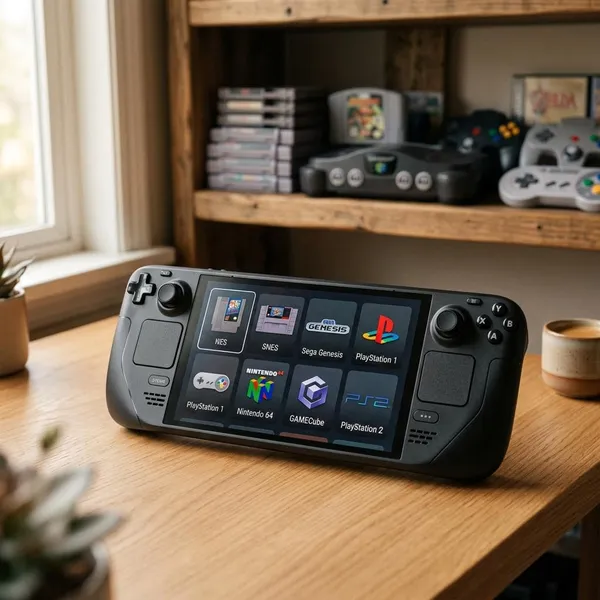
Which old consoles can Steam Deck emulate?
Steam Deck can emulate a wide range of older consoles, but they do not all feel equally effortless. The main thing to check first is the console generation: 8-bit and 16-bit systems are usually easy, early 3D systems are very manageable, and later systems need more patience.
| Console era | What to expect on Steam Deck | Best fit |
|---|---|---|
| NES, SNES, Genesis, Game Boy | Usually simple and smooth | Beginners and large retro libraries |
| N64, PS1, Dreamcast, PSP | Mostly strong, with some settings worth checking | Players who want early 3D games |
| PS2, GameCube, Wii, DS | Often playable, but more game-dependent | Users willing to tweak controls or performance |
NES SNES and Sega Genesis
NES, SNES, and Sega Genesis are the easiest systems to recommend first. They are light to run, the games are small, and the Steam Deck controls match most of these games without much adjustment.
Game Boy and Game Boy Advance
Game Boy, Game Boy Color, and Game Boy Advance feel especially natural on Steam Deck because they were handheld systems already. Short sessions work well, and features such as suspend, save states, and fast-forward can make older portable games easier to enjoy today.
- Good for storage: even a big library stays small.
- Good for comfort: turn-based and puzzle games suit handheld play.
- Worth adjusting: screen scaling, color correction, or borders if the image looks too stretched.
Nintendo 64 and PlayStation
PS1 is usually the more predictable of the two. Many games run well, and you can often improve the image with higher internal resolution or cleaner filtering.
Nintendo 64 is also very usable, but it is more likely to need per-game attention. If a game feels awkward, check both performance and controls: N64 button layouts do not always translate neatly to a modern handheld.
Dreamcast and PSP
Dreamcast and PSP are a strong middle ground on Steam Deck. They look much sharper than older 2D systems, but they are usually less demanding than PS2 or GameCube.
PSP is a particularly good match for people who want a portable-first library, since many games were built for shorter sessions. Dreamcast is better if you want arcade racers, fighting games, and early 3D console titles that still feel quick to jump into.
PlayStation 2 and GameCube
Steam Deck can run many PS2 and GameCube games, but this is where "yes" comes with a real condition: test the exact games you care about. Some titles feel smooth with default settings, while others need a lower internal resolution, a different graphics backend, or a specific emulator tweak.
If you mainly want a handful of favorites, this is still very practical. If you expect every game in a large PS2 or GameCube collection to run perfectly with no changes, you may be disappointed.
Wii and Nintendo DS
Wii and Nintendo DS are possible, but the challenge is often controls rather than raw power. DS games may need a comfortable screen layout for two displays, while Wii games can be awkward if they rely heavily on motion controls or pointer input.
The Steam Deck gives you useful tools — touchscreen, gyro, trackpads, rear buttons, and custom controller profiles — but you may need to build a layout for specific games. A menu-heavy DS RPG is much easier to adapt than a Wii game built around constant motion gestures.
What you need for Steam Deck emulation
Before installing anything, get the basics in order: an emulator setup, game files, any required BIOS files, and enough storage. Most failed setups come from one of three boring problems — files in the wrong folder, missing BIOS files, or trying a demanding system before confirming the easy ones work.
An emulator or emulation setup tool
You can install emulators one by one, but most Steam Deck users will have an easier time with EmuDeck or RetroDeck. These tools create folders, install common emulators, apply useful defaults, and make the setup less fragile.
Choose EmuDeck if you care most about Steam library integration and flexibility. Choose RetroDeck if you prefer a more contained setup that feels easier to keep tidy.
Game files for the titles you want to play
Emulators do not include games. You need your own game files in the right format for each system, and you should only use files you have the right to use.
BIOS files for systems that require them
Some systems need BIOS files before games will boot correctly. PS1 and PS2 are common examples, and some Sega disc-based systems may also require them depending on the emulator.
If a game appears in your library but refuses to launch, check BIOS requirements before changing five other settings. The file may be missing, named incorrectly, or placed in the wrong folder.
Enough internal or microSD storage
Storage needs depend heavily on the systems you choose. NES, SNES, Genesis, and Game Boy libraries are tiny compared with disc-based systems such as PS1, Dreamcast, PSP, PS2, and GameCube.
- Small retro setup: internal storage is usually fine.
- Mixed library: a microSD card keeps things cleaner.
- Large disc-based collection: plan storage before importing everything.
How to set up old console games on Steam Deck
The safest setup order is simple: install the tool first, add a small test batch of games, confirm BIOS and controls, then expand the library. Do not dump hundreds of files onto the Deck before testing one or two games from each system.
Switch to Desktop Mode
Desktop Mode is where setup is easiest because you can use a browser, file manager, downloads folder, and installer windows like a normal PC. You do not need deep Linux knowledge for a basic emulation setup, but a keyboard and mouse can make file moving less annoying.
Install EmuDeck or RetroDeck
Install your chosen setup tool from Desktop Mode and let it create the recommended folders. For most readers, this is better than manually building a full emulator setup because it reduces small mistakes that are hard to spot later.
Add your game and BIOS files
Place games into the folder for the correct console, then add BIOS files to the BIOS location required by your setup tool. Add only a few games at first — one easy system such as SNES or GBA, then one more demanding system such as PS1 or PS2.
Configure your emulators and controls
Most 2D systems need little adjustment, but N64, DS, Wii, PS2, and GameCube often benefit from custom controls or graphics settings. Set basic hotkeys too, such as save state, load state, fast-forward, and emulator menu access.
- N64: check C-button mapping and camera controls.
- DS: choose a screen layout that fits the game.
- Wii: test gyro, trackpad, or touch input before committing.
- PS2/GameCube: adjust resolution if performance drops.
Add games to Gaming Mode
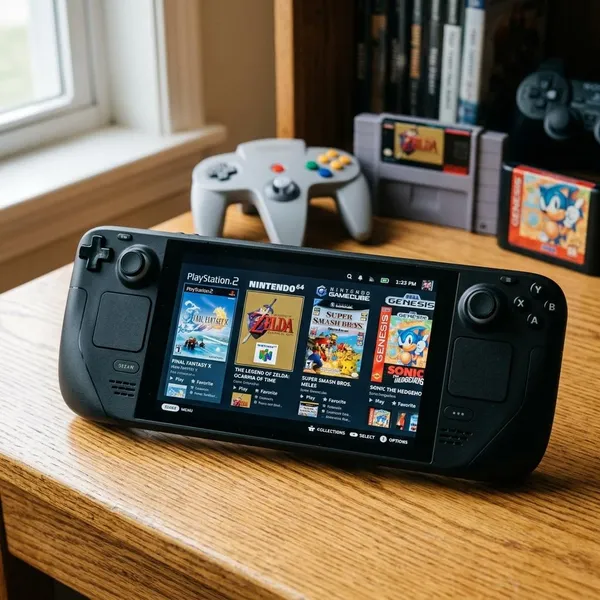
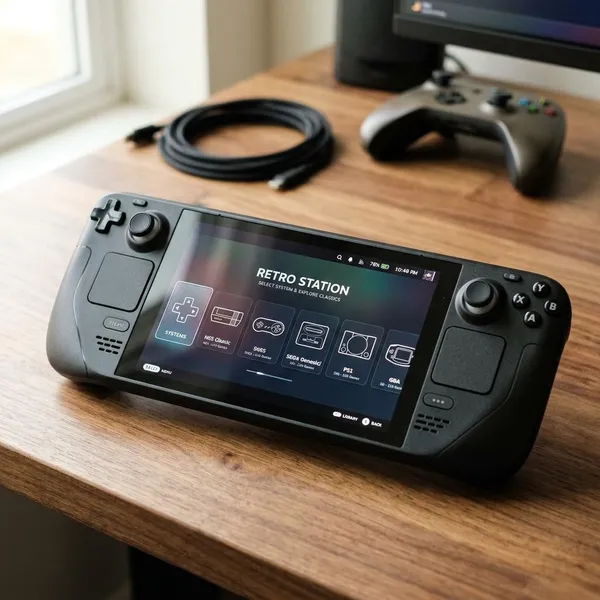
Once the test games work, add them to Gaming Mode through your setup tool or library manager. This makes the setup feel much more natural because retro games can sit beside your Steam games instead of being hidden inside folders.
Test each game and adjust settings
A game launching is not the same as a game being comfortable to play. Spend a few minutes checking audio, frame pacing, controls, save behavior, and menus before assuming a system is fully ready.
For demanding systems, test the actual kind of gameplay you care about. A PS2 racing game may behave differently from a slow RPG, and a Wii game with motion controls may need more setup than one that works with standard buttons.
Conclusion
Steam Deck is a very practical retro gaming device, as long as you treat emulation as a setup project rather than a magic one-click feature. Start with easy systems, confirm your files and BIOS are in the right place, then test harder consoles one game at a time; that approach avoids most frustration and gives you a cleaner library you will actually want to use.