If you want the canon camera connect app to work reliably, check compatibility first, then pair from the camera's smartphone menu rather than only from your phone's Bluetooth settings. The app is useful for quick photo transfers, remote shooting, and GPS tagging, but the exact features depend heavily on your camera model and phone permissions.
What is Canon Camera Connect?
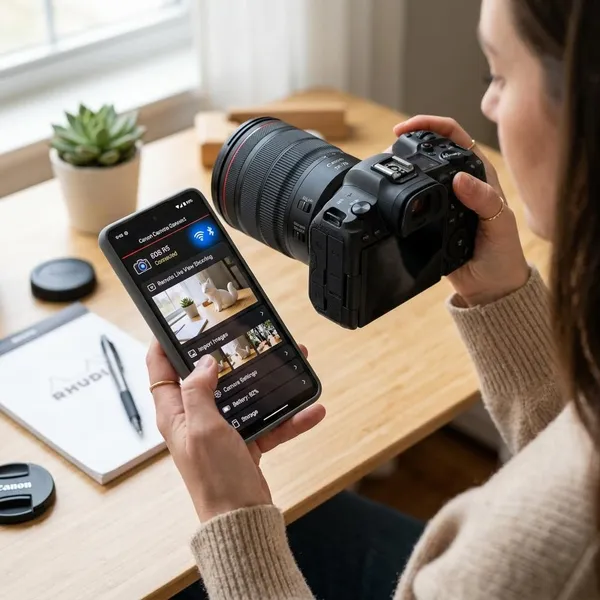
Canon Camera Connect is Canon's free mobile app for linking supported cameras to an iPhone, iPad, or Android device. Once connected, your phone can act as a file-transfer tool, a remote screen, a shutter release, and, on some models, a source for location data.
Transfer photos and videos
Photo transfer is the feature most people use first. You can browse files on the camera's memory card, select the images you want, and save them to your phone for messaging, social posting, or light mobile editing.
JPEGs are usually the smoothest choice because they are smaller and phone-friendly. Large videos, RAW files, or high-resolution batches may take longer, and some camera models limit which file types can be transferred.
Shoot remotely from your phone
Remote shooting lets you see the camera's live view on your phone and trigger the shutter without touching the camera. For tripod shots, product photos, self-portraits, group photos, or long exposures, this is often the app's most practical feature.
Add location data
On supported cameras, the app can use your phone's location information to add GPS data to photos. That is helpful for travel, hiking, location scouting, or any shoot where you may later forget exactly where a photo was taken.
Use it deliberately rather than leaving it on without thinking. Location sharing can use extra phone battery, and you will need to allow the right location permissions for it to work.
Manage supported camera updates
Some Canon models can show firmware-related information or support update-related tasks through the app. This is model-specific, so do not assume your camera will show the same options as a newer EOS body.
If pairing works poorly or a feature is missing, firmware is worth checking early. A camera may connect to the app but still behave badly if its wireless software is outdated.
Is your Canon camera compatible?
Not every Canon camera works with Canon Camera Connect, and "supported" does not always mean "supports every feature." A camera may allow image transfer but not Remote Live View, or it may use Wi-Fi without Bluetooth-assisted pairing.
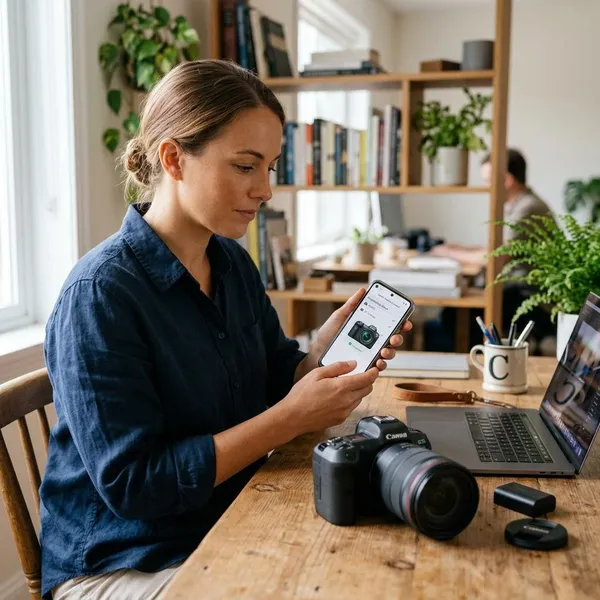
Check Wi-Fi support
Wi-Fi is the key requirement for the main app features, especially browsing images, transferring files, and using live view. Look in your camera menu for wireless communication, Wi-Fi settings, or a smartphone connection option.
If your camera has no built-in Wi-Fi, the app may not be able to do what you expect. If it does have Wi-Fi but the phone says the camera network has no internet, that is normal during direct camera-to-phone connection.
Check Bluetooth support
Bluetooth is helpful but not always required. Newer Canon cameras often use Bluetooth for easier pairing and background communication, then switch to Wi-Fi when larger data needs to move.
- Frequent use: Bluetooth support usually makes reconnecting less annoying.
- Occasional transfers: Wi-Fi-only pairing can still be fine if you do not mind a few extra taps.
- GPS tagging: Bluetooth may make location linking more convenient on supported models.
Check your camera model
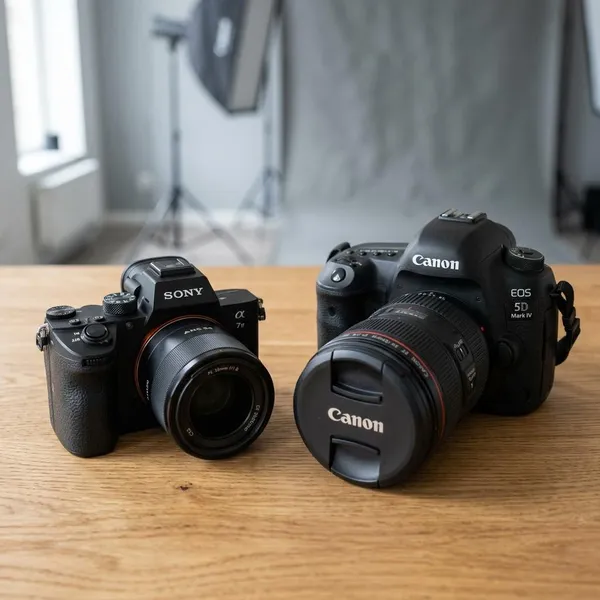
Use the exact model name, not just the camera family. "EOS," "Rebel," and "PowerShot" are too broad because Canon changes wireless features between generations and even between similar-looking models.
Check the model name in the camera menu or on the camera body, then compare it with Canon's official support information or the list shown inside the app. If your model is older, it may still connect, but the feature set may be limited.
Check phone compatibility
Your phone needs the current app version, a supported iOS or Android version, and the right permissions. Pay particular attention to Bluetooth, Wi-Fi or local network access, nearby devices, media access, and location access.
Battery-saving settings can also cause trouble. If the app connects and then drops in the background, allow Canon Camera Connect to run without aggressive battery restrictions and keep the phone close to the camera during transfers.
How to connect your Canon camera
A clean first pairing matters more than repeatedly tapping "connect." If the phone, camera, or app still remembers an old connection, delete those saved records before trying again.
Install Canon Camera Connect
Download the official app from the Apple App Store or Google Play. Avoid unofficial APKs or similarly named apps, because wireless camera pairing already has enough variables without adding an unsupported app copy.
When permission prompts appear, allow the ones needed for discovery, file saving, local network access, and location if you plan to use GPS tagging. If you denied one earlier, fix it in your phone's app settings before pairing again.
Add your camera
Open the app and use the add-camera option. Select the exact Canon model when asked, because the setup instructions can change depending on the camera generation.
If your model does not appear, stop and verify support instead of guessing. A phone may still detect a camera Wi-Fi signal even when the app cannot fully support that camera.
Start wireless pairing
Start the connection from the camera's smartphone connection menu, then follow the app prompts. Keep the phone near the camera and avoid switching to other apps until the setup finishes.
Confirm the connection
Match any pairing code or device name shown on the camera and phone. If you previously connected another Canon camera, make sure the app is not trying to use an old saved profile.
Allow the camera to register your phone as a saved device. That usually makes future connections quicker and reduces the need to repeat the full setup each time.
Test the app
Test with a simple JPEG first. Open the image browser, save one file to your phone, and confirm that it appears in your gallery or photo library.
If your camera supports Remote Live View, test that next. When browsing works but live view does not, the problem is often a Wi-Fi handoff, permission, or camera feature limitation rather than a completely failed pairing.
What can you do with the app?
After setup, the app is best treated as a convenience tool rather than a full replacement for a computer or camera menu. It shines when you need quick access, remote framing, or a few selected files on your phone.
Browse camera images
You can view photos stored on the camera's memory card from your phone. This is handy when the camera screen is too small to judge a shot properly, especially outdoors or after a busy event.
Use browsing for quick selection, not serious culling. A phone preview is good for choosing a favorite to share, but a larger screen is still better for checking fine focus and editing decisions.
Transfer photos and videos
Choose the files you want in the app and save them to your phone. For speed, transfer a few finished JPEGs rather than a whole card of large files.
- Quick sharing: send small JPEGs to your phone.
- Later editing: keep RAW files on the card for your computer workflow.
- Video clips: expect slower transfers and possible format limits.
Use Remote Live View
Remote Live View turns your phone into a wireless monitor and shutter control. It is especially useful when the camera is low to the ground, high on a tripod, across the room, or aimed at a group that includes you.
For long exposures or macro shots, remote triggering also helps avoid tiny movements caused by pressing the physical shutter button.
Change supported camera settings
Depending on the camera and shooting mode, you may be able to adjust settings such as aperture, shutter speed, ISO, exposure compensation, autofocus area, or white balance from the phone.
If a control is missing, do not assume the app has failed. It may be restricted by the camera model, the selected mode, or the type of connection currently active.
Add GPS data
GPS tagging can attach phone-based location information to your photos when the camera and app support it. It is most useful for trips, hikes, outdoor shoots, and location records where place matters later.
Before using it for a full day, do a short test and check whether the location appears correctly in your photo app or editing software. That quick check is better than discovering after a trip that location permissions were blocked.
Conclusion
Canon Camera Connect is worth setting up if your camera supports the features you actually need, especially quick JPEG transfer, remote tripod shooting, or GPS tagging during travel. Check the exact model first, pair cleanly from the camera menu, and test one transfer before an important shoot; that small bit of preparation prevents most of the annoying connection problems.