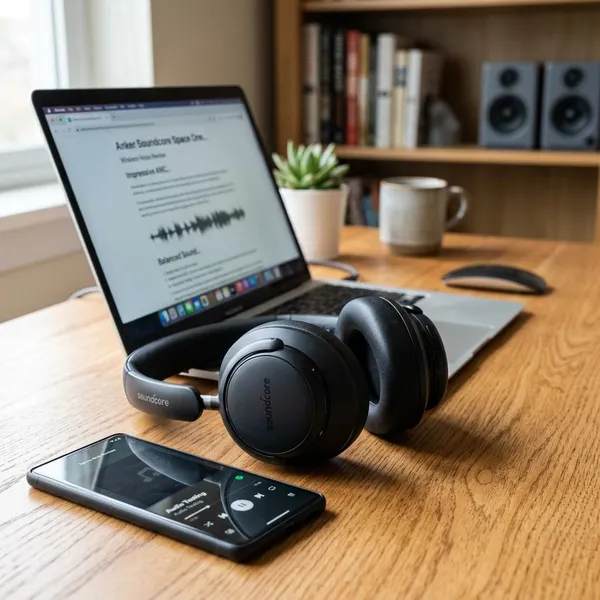
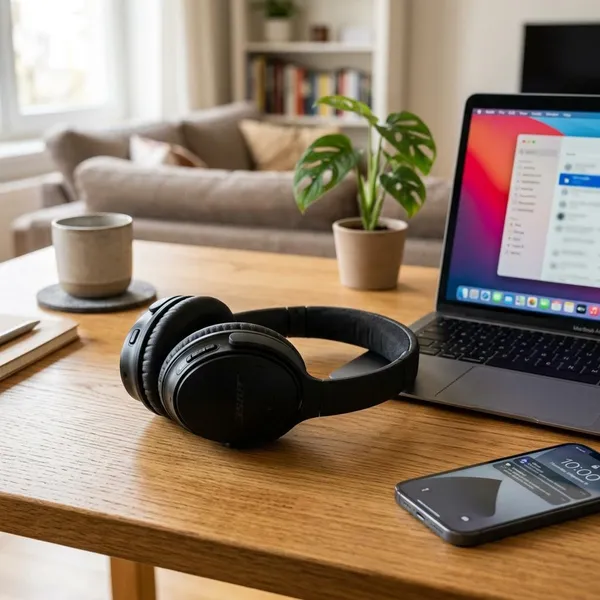
When headphones are on but no sound comes through, start with the simple routing checks before assuming the headphones are broken. Most silent-headphone problems come from the wrong output being selected, a muted volume layer, a loose plug, Bluetooth media audio being off, or a driver setting getting in the way.
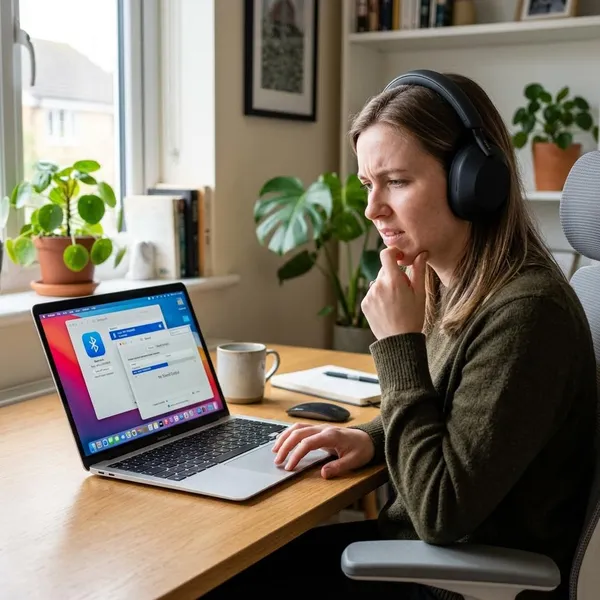
Why are your headphones on but silent?
Silent headphones usually mean one part of the audio chain is working, but another part is not. Your phone or computer may detect the headphones, while the actual music, video, game, or call audio is still being sent somewhere else.
The quickest order is simple: check where the sound is going, check every volume control, then check the physical or Bluetooth connection. Only after those pass should you spend time on drivers, enhancements, or possible hardware damage.
Audio is going to another device
Your headphones can be connected while your device keeps using built-in speakers, an HDMI monitor, a USB dock, a TV, or another Bluetooth headset. This is especially common after using a laptop at a desk with a monitor, then unplugging it and expecting sound to move back automatically.
Open the sound output menu and choose the headphones by name. If you see several similar options, pick the one meant for normal playback rather than a monitor, dock, or hands-free call device.
One volume control is muted
There is often more than one volume control involved. The device volume, the headphone buttons, the app volume, a browser tab, a game, or a meeting app can each be low or muted.
On a phone, play audio first and then press the volume buttons so you adjust media volume, not ringtone volume. On Windows, check the volume mixer if only one app is silent while other sounds still work.
The wired plug is not fully connected
A wired plug can look connected while sitting just short of the correct position. Pull it out, push it back in firmly, and check whether a phone case, laptop cover, dust, or lint is stopping the plug from seating all the way.
If sound appears only when you twist the cable, treat that as a warning sign. The problem may be a worn jack, a damaged cable near the plug, or debris inside the port rather than a setting you can fix in software.
Bluetooth media audio is turned off
Bluetooth headphones can connect for calls without being enabled for music and video. On Android this often appears as a separate "Media audio" switch, while Windows may show separate stereo and hands-free headset profiles.
If your headphones work during calls but stay silent in YouTube, Spotify, games, or videos, check the media or stereo playback option before resetting everything.
A driver or sound setting is blocking playback
Drivers and sound effects are more likely to be the cause when the headphones worked yesterday and stopped after an update, a new app, or a device change. Windows is the usual place to look first, especially if Bluetooth audio or multiple output devices are involved.
Refresh the output device, restart the computer, and temporarily turn off enhancements, spatial audio, or virtual surround. If sound returns, re-enable features one at a time instead of switching everything back on at once.
The headphones or port are damaged
Hardware damage becomes more likely when the headphones fail on several devices, one side keeps cutting out, the plug feels loose, or the cable has been bent sharply. A quick cross-test is more useful than guessing: try the headphones on another phone or laptop, then try another headset on the original device.
How to fix wired headphones with no sound
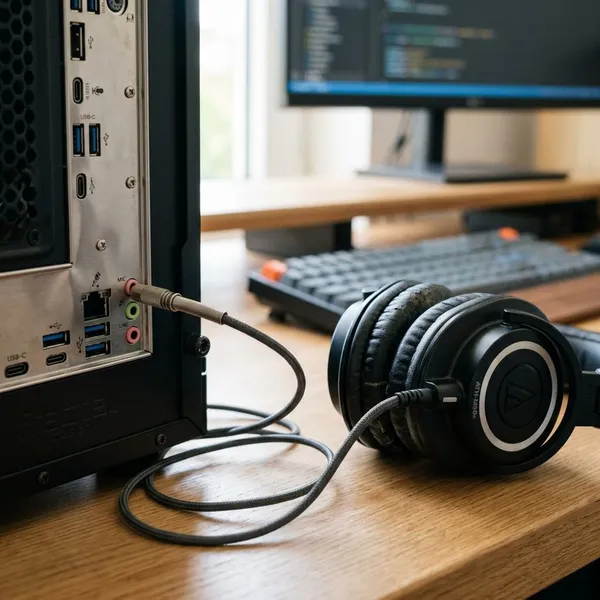
With wired headphones, begin with the physical path. A loose plug, wrong port, faulty adapter, or dirty jack is easier to rule out than a driver problem, and it often solves the issue faster.
Use a different approach depending on your situation: if the headphones are for a quick call, check the plug and output first; if this is your everyday work or gaming setup, also test ports, adapters, and software effects so the problem does not keep coming back.
Push the plug firmly into the right port
Remove the plug and insert it again slowly until it feels fully seated. On desktops, make sure you are using the headphone jack rather than the microphone jack; on laptops and phones, check that the plug is not being blocked by a case or tight port opening.
Remove and reconnect any adapter
Adapters are small, easy to overlook, and often the weak point. Disconnect USB-C, Lightning, 3.5mm splitters, DAC dongles, or extension cables, then reconnect only what you need.
- Sound works without the adapter: the adapter is probably the problem.
- Another adapter works: replace the original adapter instead of the headphones.
- No adapter works: test the headphones on another device before buying anything.
Choose the headphones as the output
Plugging in wired headphones does not always switch the output automatically. Open your sound settings and select the headphones directly, especially if your device has recently used HDMI audio, monitor speakers, a dock, or a USB sound device.
After choosing the output, play a simple test sound. If the setting jumps back to speakers or a monitor, disconnect other audio devices temporarily and choose the headphones again.
Try another port or device
This is the cleanest way to separate a headphone problem from a device problem. If the headphones work on another phone, laptop, controller, or audio jack, the original port or device settings deserve attention. If they fail everywhere, the headset or cable is the more likely fault.
Turn off sound enhancements
Sound enhancements, spatial audio, virtual surround, and laptop audio utilities can occasionally block or distort playback. Turn them off temporarily and test with a basic audio source rather than a complicated game, browser tab, or meeting app.
If the headphones start working, leave the problem feature off or re-enable effects one by one. That is safer than changing several settings at once and not knowing which one caused the silence.
How to fix Bluetooth headphones connected with no sound
Bluetooth no-sound issues are usually about routing, profiles, or a stale connection rather than the headphones being dead. The headset may be paired, but your device may not be sending media audio to it.
This happens a lot when headphones are used between two devices, such as a phone and a laptop. The headphones may look connected to both, while only one device actually controls the audio path.
Disconnect and reconnect the headphones
Turn Bluetooth off on the source device, wait a few seconds, then turn it back on. Power the headphones off and on as well, then reconnect and start playback again.
A clean reconnect is worth doing before deeper changes because Bluetooth can keep a half-working session alive. The device shows "connected," but no proper media channel is active.
Select the Bluetooth audio output
Pairing is not the same as selecting. Open the playback or sound menu and choose the headphone name as the active output.
On Windows, watch for separate entries. The stereo option is usually better for music and videos, while the hands-free headset option is mainly for calls and can sound poor or behave differently.
Turn up both volume controls
Raise the volume on the phone, computer, or tablet and on the headphones themselves. Some Bluetooth models keep their own volume level, so the source device can look loud while the headset is still almost muted.
- Phone: adjust volume while music or video is playing.
- Computer: check the app and system volume mixer.
- Headphones: use the physical buttons or touch controls, not only the screen slider.
Enable media audio
If Bluetooth is connected for calls only, music and video may stay silent. On Android, open the Bluetooth details for the headphones and switch on Media audio. On Windows, choose the stereo playback profile if it is available.
Forget and pair the headphones again
If reconnecting does not help, remove the headphones from the Bluetooth list and pair them again from scratch. This clears old pairing data that may have been confused by updates, failed connections, or switching between devices.
Keep the headphones close to the device while pairing. Also pause or turn off nearby devices that have used the same headphones before, so they do not grab the connection mid-setup.
Disconnect other paired devices
Another device can silently take priority, especially with multipoint headphones. For example, your phone may show the headphones as connected while your laptop is still holding the media connection from an earlier video call.
Turn off Bluetooth on the other device or disconnect the headphones there, then test with only one source active. If sound returns, the issue is not the headphones; it is competing connections.
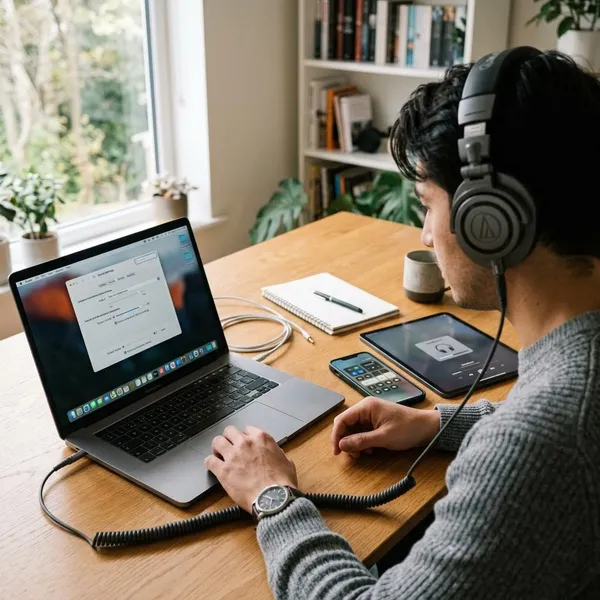
How to restore headphone sound on each device
The same basic checks apply everywhere, but each device hides the useful setting in a different place. Pick the section that matches what you are using now, and do the quick output check before moving into resets or driver work.
Choose the output and refresh drivers on Windows
Open Settings, go to System, then Sound, and choose your headphones under Output. If Bluetooth gives you more than one option, try the stereo playback option for music and video.
- Open Device Manager from the Start menu.
- Check both Sound, video and game controllers and Bluetooth.
- Update or refresh the relevant audio or Bluetooth device.
- Restart the PC and test with a simple audio file or video.
If the issue started after a Windows update or a new headset pairing, also disable enhancements and check that the headphones are set as the default playback device.
Reselect the output and reconnect on Mac
Open System Settings, choose Sound, then select your headphones under Output. If a display, dock, or speaker is selected, the headphones may stay silent even though they are plugged in or paired.
For Bluetooth headphones, disconnect and reconnect them after selecting the output. For wired headphones on a newer Mac, test the USB-C or 3.5mm adapter if the same headset works elsewhere.
Change the playback destination on iPhone
Open Control Center and tap the audio output icon in the media panel, then choose your headphones. iPhone may keep sound routed to the speaker, AirPlay device, car audio, or another nearby Bluetooth device.
If you use a wired adapter, do not overlook it. A failing Lightning or USB-C audio adapter can make the connection look normal while blocking sound completely.
Enable media audio and reconnect on Android
Open Bluetooth settings, tap the details icon next to your headphones, and make sure Media audio is enabled. If only call audio is on, the headphones may work for phone calls but not videos, games, or music.
If Media audio is already on, disconnect the headphones, restart the phone, and reconnect. For wired headphones, check the USB-C or 3.5mm adapter with another headset if possible.
Conclusion
The best fix is to work from the obvious to the expensive: output device first, then volume, connection, adapter, Bluetooth media settings, and only then drivers or replacement. If the headphones work on another device, keep troubleshooting the source; if they fail everywhere, it is reasonable to suspect the headphones, cable, adapter, or port instead of chasing more settings.