You can usually cancel Xbox Live from your Xbox by opening the guide, going to account settings, and managing the active subscription tied to your Microsoft account. The most important thing is to use the account that pays for the membership; otherwise, the cancel or recurring billing option may not appear.
How to cancel Xbox Live from your console
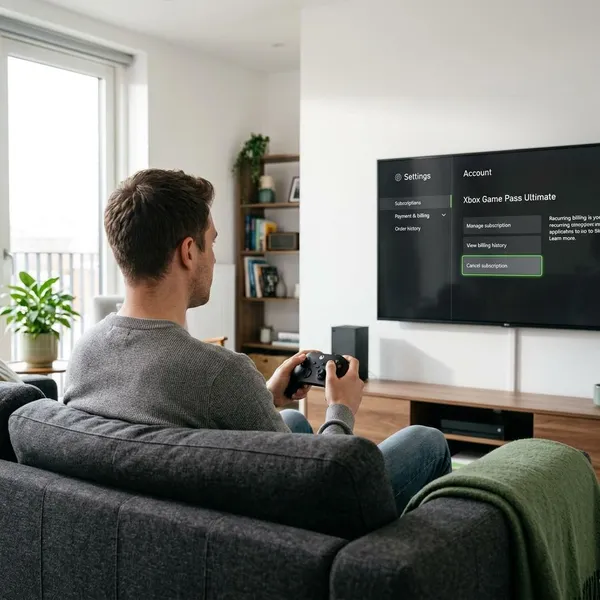
On Xbox One, Xbox Series X, and Xbox Series S, the console route is usually the quickest way to stop a renewal. Microsoft may show the plan as Xbox Live, Xbox Game Pass Core, or Xbox Game Pass Ultimate, so focus on the active subscription and renewal status rather than the exact name.
Press the Xbox button to open the guide
Press the Xbox button in the center of your controller to open the side guide. You can do this from the home screen, a game, or an app, so there is no need to quit what you are doing first.
If you share the console with family or roommates, pause here and check the active profile. A child profile or another player's account may use the benefits, but only the account that owns the subscription can normally change billing.
Open Settings and go to Account
Go to Profile & system, choose Settings, then open Account. This is where Xbox keeps subscription, sign-in, payment, and family-related account controls.
Select Subscriptions
Choose Subscriptions from the Account menu. If the page shows your Xbox membership, look for the renewal date, billing status, and any mention of recurring billing.
An empty subscription page usually points to the wrong Microsoft account. A prepaid membership, on the other hand, may show an expiration date without a renewal switch because it is already set to run out on its own.
Choose your active Xbox subscription
Select the active Xbox plan you want to manage. If more than one service appears, match the plan with the charge on your receipt or bank statement before you change anything.
This is especially worth checking if you have Game Pass Ultimate plus another Microsoft service on the same account. Choosing the wrong subscription will not stop the Xbox renewal you care about.
Select Cancel or turn off recurring billing
Choose Cancel or Turn off recurring billing, depending on the wording shown on your console. For many users, turning off recurring billing is the practical choice because it stops the next automatic payment while keeping access until the current paid period ends.
- Use cancel if the screen clearly says the subscription can be canceled and explains what happens next.
- Use turn off recurring billing if your goal is simply to prevent the next renewal charge.
- Do not guess if the screen mentions a refund, immediate loss of access, or a billing problem; read the confirmation details first.
Confirm the change
Confirm the final prompt and look for wording that says recurring billing is off, the subscription is canceled, or the membership ends on a specific date. That status message matters more than the button you clicked.
If your renewal date is close, keep a screenshot or save the confirmation email. It gives you something concrete to compare against if a charge appears later.
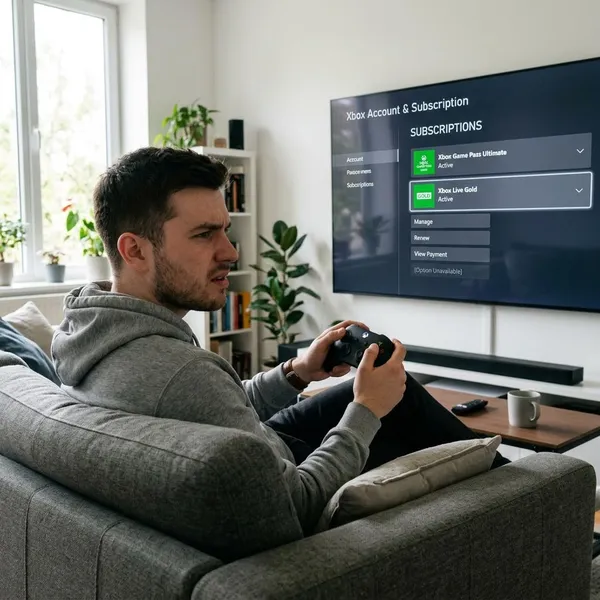
Why you cannot cancel Xbox Live on your console
A missing cancel button does not automatically mean something is broken. Most console cancellation problems come from account ownership, renewal status, third-party billing, limited console controls, or a payment issue that needs attention first.
Start with the account and billing source before restarting the console or changing payment details. Those two checks solve more problems than digging through extra menus.
You are signed in to the wrong Microsoft account
This is the most common reason the option is missing. On a shared Xbox, one person may play online while another person's Microsoft account actually pays for the subscription.
Sign in with the account that receives Microsoft billing receipts. If you are not sure, search your email inboxes for Xbox, Game Pass, Microsoft subscription, or renewal messages and compare the address with the profile on the console.
Recurring billing is already turned off
If recurring billing is already off, there may be nothing else to cancel from the console. The subscription can still work until the paid time runs out, but it should not renew automatically.
The subscription was purchased through another provider
If you got the membership through a mobile carrier, internet bundle, retail promotion, or another billing partner, the Xbox may show the subscription but not let you cancel it. In that case, the company that bills you usually controls the cancellation.
Check where the charge appears. If your statement does not show Microsoft as the billing source, use that provider's account page or support channel instead of spending more time in the Xbox menu.
The cancellation option is not available on the console
Sometimes the console interface only shows limited subscription details. This can happen because of regional settings, account-specific controls, or dashboard changes.
The practical workaround is to use Microsoft's website. The web version of Services and subscriptions often shows clearer billing controls than the console, especially if you are trying to cancel near a renewal date or from an older dashboard layout.
Your account has a billing issue
A failed payment, expired card, unpaid balance, or account verification problem can limit what you can change. Look for warning messages on the subscription page and check recent Microsoft emails before assuming the cancel button has disappeared for no reason.
How to cancel if the console method does not work
If the Xbox menu does not let you cancel, use your Microsoft account online. This is the better route when you are away from your console, the subscription page will not load, or you need a clearer record of the billing status.
Sign in to your Microsoft account
Go to the official Microsoft account website and sign in with the email connected to your Xbox billing receipts. If you have several Microsoft accounts, do not rely on memory; the receipt email is the safest clue.
Open Services and subscriptions
Open Services and subscriptions after signing in. This page shows Microsoft subscriptions, renewal dates, billing status, and available management options for that account.
It may list the membership as Game Pass Core or Game Pass Ultimate rather than Xbox Live. Match the plan by renewal date and charge amount instead of looking only for the older name.
Find your Xbox subscription
Find the active Xbox subscription and check whether it says renews or expires. A prepaid code may simply end on its expiration date, while an auto-renewing plan needs recurring billing turned off if you want to stop future charges.
Choose Cancel or turn off recurring billing
Select the available cancellation or recurring billing option, then read the on-screen result before confirming. If the page says access continues until the end of the current billing period, that is normal and usually better than losing access immediately.
If no option appears online either, the two most likely explanations are outside billing or an account problem. At that point, check the payment source and any account alerts instead of repeating the same console steps.
Confirm the subscription status
After the change, stay on the page long enough to verify the new status. You want to see recurring billing turned off, a cancellation confirmation, or a clear end date.
Conclusion
The safest way to stop Xbox Live renewal is to confirm the right Microsoft account first, then turn off recurring billing or cancel from the subscription screen. If the console does not show the option, use Microsoft's online Services and subscriptions page and check for a clear end date or "recurring billing off" message before you consider it finished.