Most newer phones can scan QR codes without a separate app, but the easiest phone to use depends on where the scanner lives and what you need it to do. Start by checking the Camera app first; if that does not react, the next best places are Control Center on iPhone, Quick Settings on Pixel or Samsung, and Google Lens on other Android phones.
Which smartphones can scan QR codes without an app?
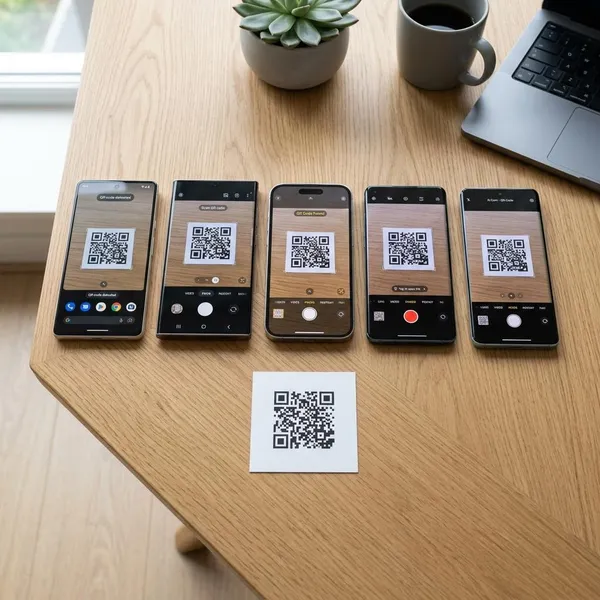
Recent iPhones, Google Pixel phones, Samsung Galaxy phones, and many other Android models can scan QR codes with tools already built into the phone. For everyday scans, the Camera app is usually enough.
iPhones scan QR codes with Camera or Code Scanner
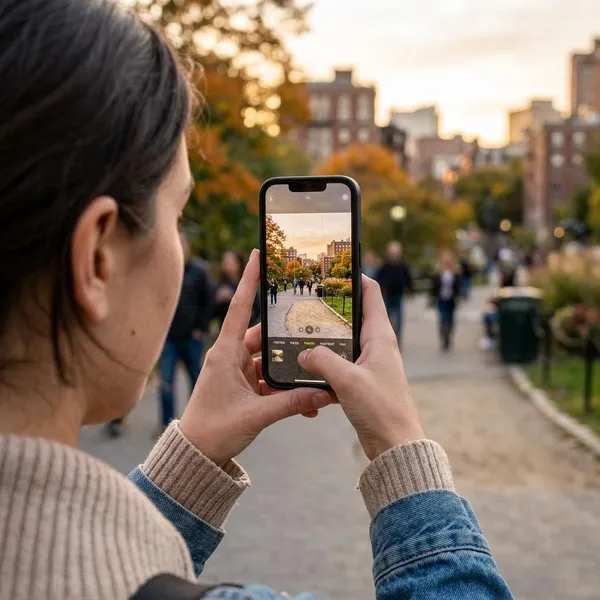
On iPhone, the standard Camera app scans QR codes on supported iOS versions. Hold the rear camera over the code, keep the full square visible, and tap the prompt that appears.
If you scan often, add Code Scanner to Control Center. It is handy for repeated, quick scans such as restaurant menus, event check-ins, or smart-home setup cards because it opens straight into scanning mode.
Google Pixel phones scan with Camera or Quick Settings
Pixel phones usually handle QR codes through the Camera app with Google Lens working in the background. Many Pixel models also offer a QR scanner tile in Quick Settings, which is faster when you want a dedicated scanner instead of the full camera view.
Samsung Galaxy phones scan with Camera or Quick Settings
Most recent Samsung Galaxy phones can scan through the Camera app, but the setting may need to be enabled on some models. If the camera does not show a prompt, open Camera settings and look for the QR scanning option.
- For printed codes: start with the Camera app.
- For quick repeated scans: look for a scanner tile in Quick Settings.
- For screenshots or web pages: try Gallery, Samsung Internet, or another built-in Samsung tool available on your model.
How built-in QR scanning compares across smartphones
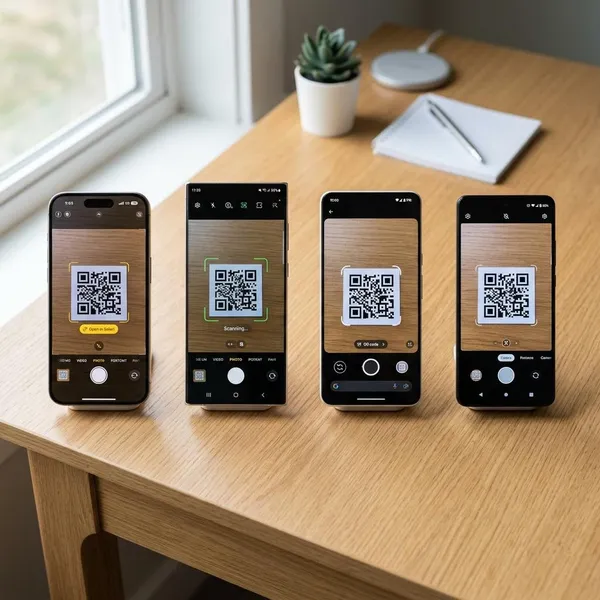
The main difference is not whether a phone can scan a QR code. It is how predictable the experience feels when you are in a hurry. iPhone is usually the most consistent, Pixel adds stronger visual tools through Google Lens, Samsung gives more built-in routes, and other Android brands vary more by model and software version.
| Phone type | Best first method | What it does well | Where it can be less clear |
|---|---|---|---|
| iPhone | Camera or Code Scanner | Consistent prompts and simple access | Fewer extra visual-search tools than Pixel |
| Google Pixel | Camera or QR tile | Strong Google Lens support for images, text, and search | Some users may find Lens options busier than a basic scanner |
| Samsung Galaxy | Camera or Quick Settings | Several built-in ways to scan | Settings and shortcuts can differ between Galaxy models |
| Other Android phones | Camera, then Google Lens | Often works well on newer phones | Support is less standardized across brands and regions |
iPhone offers a simple system-wide experience
iPhone is the easiest choice if you want the same basic method to work across supported models: open Camera, point, tap the banner. Apple also keeps common actions such as opening links, joining Wi-Fi, or adding contact details fairly clear before you proceed.
Pixel adds Google Lens tools
Pixel is strongest when QR scanning is only one part of what you want from the camera. Google Lens can also help with saved images, printed text, translation, and visual search, so it suits people who often receive QR codes in screenshots, emails, or product packaging rather than only on signs.
Samsung offers several scan options
Samsung's advantage is flexibility. If the Camera app is not the right tool for the moment, a Quick Settings tile, Gallery-related option, Samsung Internet feature, or image-recognition tool may still handle the code.
Other Android brands offer mixed support
Phones from brands such as Motorola, OnePlus, Xiaomi, Oppo, Vivo, and others often include QR scanning, but there is no single Android-wide layout. Some put it directly in Camera, some lean on Google Lens, and some include a separate scanner utility.
Which QR scanning features differ by phone?
For a basic website link, most modern smartphones feel similar. The differences show up with shortcuts, saved images, Wi-Fi codes, payment links, contact cards, and how clearly the phone explains what will happen after you tap the scan result.
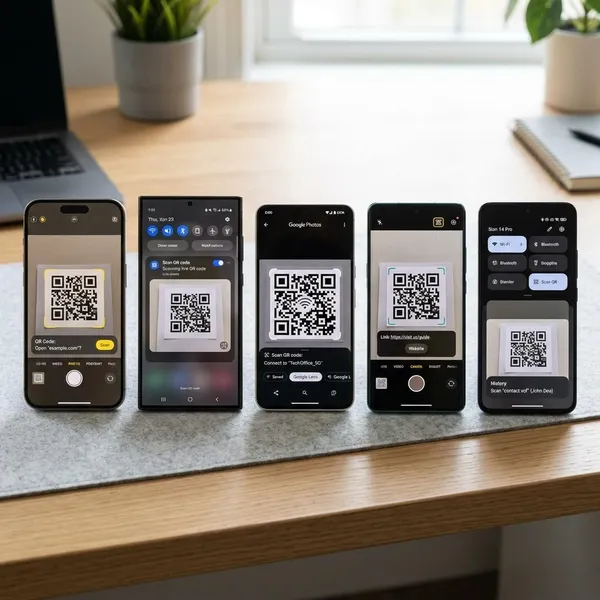
Camera detection varies by model and settings
Camera detection depends on software, focus, lighting, and whether QR recognition is switched on. A cheaper phone with well-tuned camera software can feel faster than a more expensive phone where QR detection is hidden behind a setting.
- If the code is printed: flatten it, improve the light, and keep the full square in frame.
- If the code is on another screen: reduce glare and increase the screen brightness.
- If nothing appears: check camera settings for QR, Scan, or Lens options before installing another app.
Scanner shortcuts differ by platform
Shortcuts matter if you scan more than once in a while. iPhone has Code Scanner in Control Center, Pixel often has a QR scanner tile in Quick Settings, and Samsung may offer a similar tile depending on the model and One UI version.
For occasional restaurant menus, the Camera app is fine. For daily work badges, warehouse labels, school check-ins, or shared office Wi-Fi, a one-swipe shortcut is worth setting up because it removes the guesswork.
Saved-image scanning uses different system tools
Saved-image scanning is the feature many people forget to test. A QR code might arrive as a screenshot in a chat, a digital ticket in an email, or a setup code inside a PDF. Pixel usually handles this well through Google Lens, iPhone may recognize codes in Photos or screenshots depending on iOS version, and Samsung often uses Gallery, Lens-like tools, or Samsung's own built-in options.
Extra QR actions depend on the phone software
Opening a web link is the easy part. Better QR handling means the phone can recognize what the code is for and offer a useful next step, such as joining Wi-Fi, adding a contact, opening a map location, or showing a payment prompt.
Be more cautious with payment links, login pages, and codes on public stickers. A built-in scanner can make scanning convenient, but it cannot prove that the QR code is safe or that a link has not been replaced by someone else.
How to scan a QR code on each phone
The fastest method is usually the Camera app, but each platform has a second route worth knowing. Use the built-in options first, especially on newer phones, because many third-party scanner apps add ads, tracking, or unnecessary permissions.
Open Camera or Code Scanner on iPhone
- Open Camera and use the rear camera.
- Keep the full QR code visible and wait for the banner.
- Tap the banner only after checking the action or link looks expected.
- For faster access, add Code Scanner to Control Center.
Use Camera or Quick Settings on Pixel
Open Camera, point at the QR code, and tap the Lens or QR prompt when it appears. If you want a cleaner scanner view, swipe down to Quick Settings and look for the QR scanner tile.
Pixel is a good fit for mixed use: scanning a printed menu, reading a code from another phone screen, and checking a QR code saved in Google Photos can usually be handled without changing apps much.
Use Camera or Quick Settings on Samsung
Start with Camera and wait for the QR prompt. If nothing happens, check Camera settings for QR scanning, then look in Quick Settings for a scanner tile.
- No prompt in Camera: enable QR scanning in Camera settings if available.
- Code saved as an image: try Gallery or another Samsung image tool on your model.
- Code on a webpage: Samsung Internet may offer built-in handling on some devices.
Check Camera or Google Lens on other Android phones
On other Android phones, try the default Camera app first. If it does not detect the code, open camera settings and look for QR, Scan, or Lens-related options.
Conclusion
The built-in scanner is the right first choice on almost any modern smartphone. iPhone is best for simple consistency, Pixel is strongest when you also want Lens tools, Samsung is flexible once you know where its scanner options are, and other Android phones are worth testing directly because the same feature can be placed in different menus.