If you need to reset, repair, sell, or replace your phone, back it up before you do anything else. The safest routine is simple: turn on automatic backup, run a fresh manual backup before a risky change, then check that photos and recent data actually finished syncing. Do not assume a backup exists just because you use iCloud or a Google account.
How to back up your phone quickly
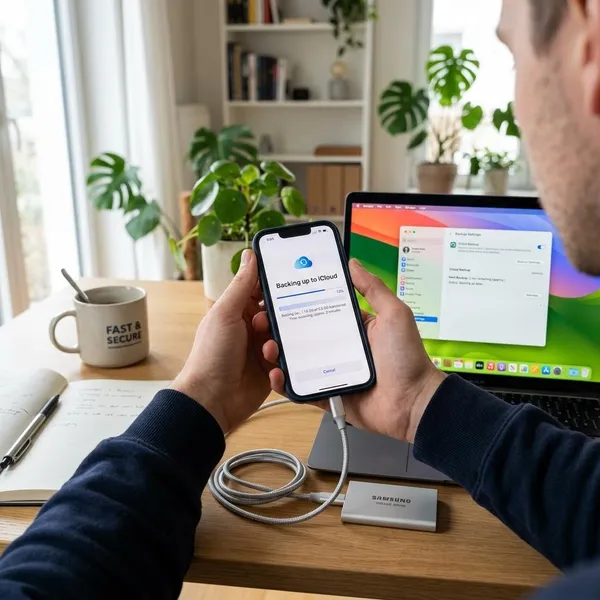
For a quick backup, use the built-in cloud system on your phone: iCloud Backup on iPhone or Google backup on Android. Connect to Wi-Fi, plug the phone into power if the battery is low, and make sure your cloud account has enough storage before you start.
- Automatic backup is on so your phone keeps protecting itself.
- A manual backup has just completed if you are about to reset, repair, trade in, or update the phone.
- Photos and videos are synced because they often use a separate backup system.
Turn on automatic backup
Automatic backup is the best default setting for everyday protection. On iPhone, go to Settings, tap your name, open iCloud, then iCloud Backup. On Android, open Settings, tap Google, then Backup, or search "backup" in Settings if your phone uses different wording.
This is enough for normal day-to-day use, but it is not something to trust blindly. Backups can stop when cloud storage is full, Wi-Fi is unreliable, or the phone has not been plugged in long enough.
Start a manual backup
Use a manual backup when timing matters. If your screen is cracked and you are about to hand the phone to a repair shop, or you are doing a factory reset before selling it, tap Back Up Now on iPhone or Back up now on Android before you continue.
Keep the phone on Wi-Fi until the backup finishes. If the process stops halfway through, restart it rather than assuming the partial upload is good enough.
Check the latest backup
A backup setting is only useful if the last successful backup is recent. Look for the backup date and time in the same backup menu; if it is days or weeks old, fix that before making any major change to the phone.
- Old date: reconnect to stable Wi-Fi and try again.
- Storage warning: free up iCloud or Google storage before backing up.
- No clear status: restart the phone and run a manual backup again.
Confirm photos are synced
Photos and videos deserve their own check because they may not be covered by the main device backup in the way you expect. On iPhone, check iCloud Photos. On Android, open Google Photos and look for the backup or sync status.
This matters most after a trip, a family event, or any day when you recorded large videos. Contacts and settings may finish quickly, while media files can still be uploading hours later.
How to back up an iPhone
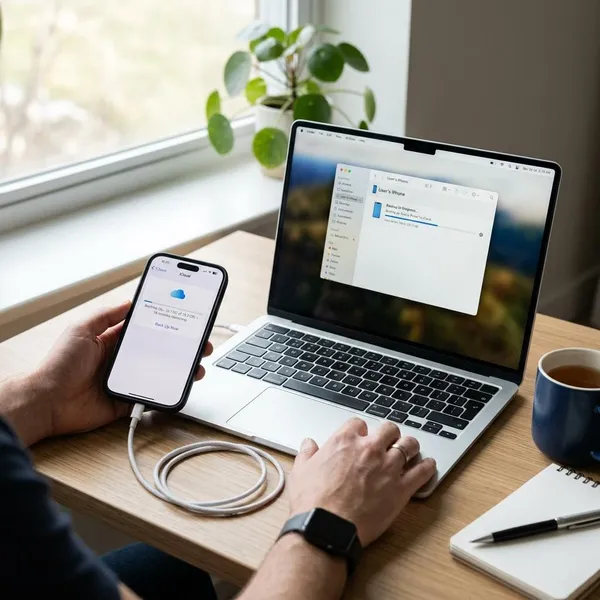
On an iPhone, iCloud Backup is usually the simplest backup method because it is built into iOS and tied to your Apple ID. It can help restore your device settings, app data, messages, and other supported information when you set up another iPhone.
Open iCloud Backup
Open Settings, tap your name at the top, choose iCloud, then open iCloud Backup. This screen shows whether iCloud Backup is enabled and whether your phone has completed a recent backup.
Turn on automatic backup
Switch on Back Up This iPhone. After that, the phone can back up automatically when conditions are right, usually when it is connected to Wi-Fi, charging, and locked.
If you share iCloud storage with family members, check the available space before relying on it. A nearly full iCloud plan is one of the easiest ways for backups to fail quietly.
Tap Back Up Now
Back Up Now creates a fresh restore point. Use it before a repair, iOS update, trade-in, factory reset, or any situation where losing today's messages and photos would be a problem.
Do not start the reset the moment you tap the button. Wait until the screen confirms the backup has finished and shows a current time.
Check the last backup
Stay on the iCloud Backup screen and check Last Successful Backup. If the time shown is not recent, look at Wi-Fi, battery, iCloud storage, and your Apple ID status before you trust the backup.
How to back up an Android phone
Most Android phones use Google backup, sometimes shown as Backup by Google One. The exact menu can look different on Pixel, Samsung, Motorola, OnePlus, and other brands, but the goal is the same: connect the backup to the right Google account and confirm it has completed recently.
If you may switch to a different Android brand later, Google backup is usually the safer main choice than a brand-only backup. A Samsung backup can be useful on Samsung devices, but a Google backup is more flexible when moving between Android phones.
Open your backup settings
Open Settings and search for backup if you do not know the exact path. On many phones, it is under Google > Backup; on Samsung, you may also see Accounts and backup.
Before you turn anything on, check the account shown on the screen. If you use one Google account for work and another for personal photos, backing up to the wrong account can make restoring the phone more confusing later.
Turn on Google backup
Enable Backup by Google One or the backup switch your phone shows. This can save supported data such as contacts, call history, device settings, SMS on supported phones, app data, and other restore information.
- Good enough for routine use: automatic Google backup plus Google Photos sync.
- Better before a reset: run a manual backup and check the latest backup time.
- Safer for irreplaceable files: copy key documents or media to a computer as a second layer.
Start a manual backup
Tap Back up now when you need the most current version of your data saved. This is the right step before a factory reset, repair visit, trade-in, or move to a new phone.
If your internet connection is weak, wait until you are on a stable Wi-Fi network. A backup that keeps pausing is not something to depend on before wiping the device.
Check the backup status
Look for the latest backup time on the Android backup page. If it is old, check Google storage, Wi-Fi, battery restrictions, and account sync before you continue with anything risky.
What does a phone backup save?
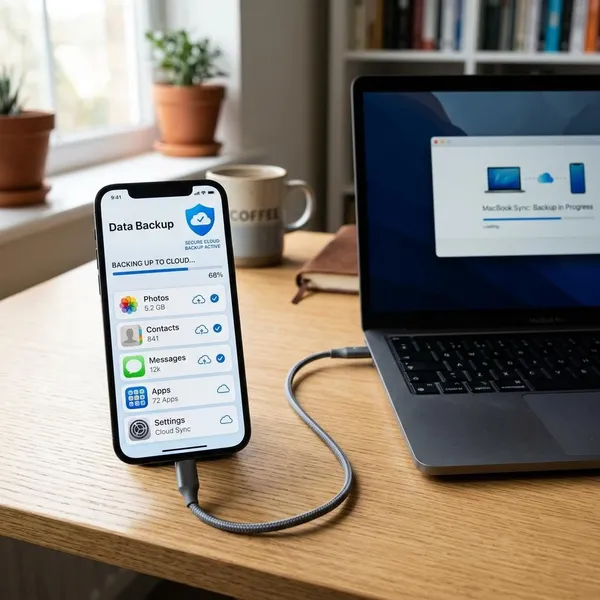
A phone backup usually saves the information needed to restore your device, but it is not always a perfect copy of everything stored on the phone. The safest way to think about it is in layers: device backup, photo sync, app-specific backups, and a separate copy for anything you cannot replace.
That distinction matters before a factory reset. A normal backup may bring back your layout, settings, contacts, and supported app data, but it may not save every download, offline file, game save, or secure app login.
Photos and videos
Photos and videos may sync through iCloud Photos or Google Photos rather than only through the main phone backup. Open the photo app and look for a message that backup is complete, especially if you recently recorded long videos or added a lot of media.
Contacts and messages
Contacts and standard messages are commonly included, but the details depend on your settings and platform. Check whether contacts are saved to iCloud, Google, or only on the device, because device-only contacts are easier to lose.
For third-party messaging apps, check the app itself. WhatsApp, Signal, Telegram, and similar apps do not all handle chat history in the same way.
Device settings
Backups often include practical settings such as Wi-Fi networks, display preferences, wallpaper, alarms, accessibility settings, and home screen layout. These are not the most emotional files, but they make a restored phone feel normal much faster.
App data
App data is where expectations often go wrong. Some apps restore smoothly, while banking apps, password managers, games, and authenticator apps may require extra login, recovery codes, or a separate transfer process.
If an app controls money, identity, work access, or two-factor authentication, check its recovery options before resetting the phone. That is a higher-risk situation than simply reinstalling a weather app or social media app.
Wi-Fi settings
Saved Wi-Fi networks and passwords are often restored with a phone backup. It is a small convenience until you are setting up a replacement phone at home, work, school, or a relative's house and do not need to ask for every password again.
Conclusion
The backup that matters is the one you have actually checked. Turn on automatic backup for everyday protection, run a manual backup before any reset or repair, and confirm photos plus high-risk apps separately. If something would be painful or impossible to replace, keep a second copy outside the phone instead of trusting one cloud setting.